
In-Email Forms: How to Collect Data Without Sending Customers to a Landing Page

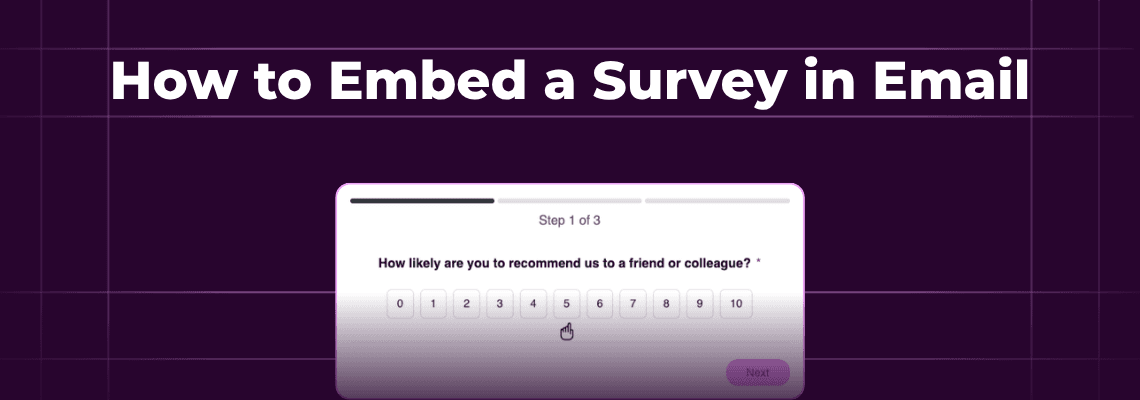
Every form you send to a landing page risks losing responses.
Someone opens your email. They click the "Take our survey" button. A new tab opens. The page loads. They remember they were in the middle of something else. Tab closed. Response lost.
In-email forms change that equation. Instead of asking customers to go somewhere else, you bring the form to them. They answer questions, submit preferences, rate their experience, all without leaving their inbox.
The difference shows up in response rates. According to Litmus, interactive email content increases click-to-open rates by 73%. For forms specifically, brands using in-email data collection see 2-3x higher completion rates compared to landing page forms.
For eCommerce brands, that means more zero-party data you can actually use. Better segments. Emails that get smarter over time.
Inside this page
Share this
Summarize with AI
Key Takeaways
In-email forms let customers respond to questions, update preferences, and submit feedback directly inside the email without clicking through to external pages.
Response rates jump. In-email forms see 2-3x higher completion rates than landing page forms because you eliminate the biggest drop-off point: the click.
Common use cases include preference collection, NPS surveys, post-purchase feedback, profile updates, and product quizzes. Any time you need customer input, an in-email form can capture it.
Email client support covers the big ones. Gmail, Apple Mail, Yahoo, and Samsung Mail support in-email forms. Outlook has limitations, but fallback designs ensure everyone gets a working experience.
Modern platforms handle the technical complexity. You don't need to code HTML forms manually. Tools like Kinetic let you design forms visually and embed them in any email.
What Are In-Email Forms?
In-email forms are interactive elements that let recipients submit information directly inside an email message. Instead of clicking a link that opens a landing page with a form, the form appears right in the email body. Customers fill it out and submit without ever leaving their inbox.
This works differently than a typical email with a form link.
Traditional approach: email contains button, button links to form page, customer completes form on that page.
In-email approach: form is inside the email itself. No external page needed.
The technical foundation uses standard HTML or AMP form elements that work in most email clients. But you don't need to understand the code to use them. Platforms that support in-email forms handle the rendering, submission, and data collection behind the scenes.
What can you collect with in-email forms? Pretty much anything you'd put on a landing page form:
Multiple choice questions (product preferences, interests, goals)
Rating scales (NPS scores, satisfaction ratings, star reviews)
Text inputs (feedback, comments, names)
Checkboxes (opt-ins, preference selections)
Date or number inputs (birthdays, sizing information)
The key difference from interactive email elements like carousels or accordions: forms capture data. They're not just engagement tools. Every submission gives you information you can use to personalize future communications.
Why In-Email Forms Get Better Response Rates
The math is simple. Every step between seeing a request and completing it loses people.
A typical survey email flow looks like this:
Customer opens email
Customer reads request to take survey
Customer clicks survey button
Browser opens, page loads
Customer reads survey page
Customer completes survey
Customer submits
Each transition loses a percentage of respondents. Open-to-click rates average 2-3% for most emails. That means 97% of people who see your survey link never start it.
In-email forms compress that funnel:
Customer opens email
Customer sees form
Customer responds
No external links. No page load. The response happens where the attention already is.
Use Cases: When to Use In-Email Forms
Preference Collection
The most valuable use case for eCommerce brands. Ask customers about their preferences, interests, or needs so you can segment and personalize future emails.
Examples:
"What product categories interest you most?" (multiple choice)
"What's your primary skin concern?" (for beauty brands)
"Are you shopping for yourself or someone else?"
"When do you want to hear from us?"
These questions traditionally live in preference centers that nobody visits. Preference center completion rates hover around 2%. Put the same questions in an email, and completion rates jump to 15-25%.
The data you collect flows directly into your ESP for segmentation. Someone selects "dry skin" as their concern, they get added to the dry skin segment automatically.
NPS and Satisfaction Surveys
Net Promoter Score surveys ask one question: "How likely are you to recommend us to a friend?" Scale of 0-10.
Traditional NPS emails link to a survey page. In-email NPS puts the rating scale directly in the message. One tap to respond.
The lift is dramatic. In-email NPS surveys see response rates 2-3x higher than click-through surveys. More responses mean more statistically significant data and faster identification of detractors who need follow-up.
You can expand this to other satisfaction measures. CSAT (customer satisfaction) scores, product ratings, delivery experience ratings. Any numeric scale works well as an in-email form element.
Post-Purchase Feedback
After someone receives their order, you want to know: Did they like it? Was the experience good? Would they buy again?
Post-purchase surveys traditionally require a click to a form page. In-email versions collect feedback where customers are most likely to respond: right after opening your check-in email.
Ask about:
Product satisfaction (star rating or scale)
Would they recommend to a friend? (NPS)
How was packaging and delivery?
What would they like to see improved?
Keep it short. Two or three questions maximum. You want quick feedback, not a dissertation.
Profile Updates
Getting customers to update their profiles is notoriously difficult. Account settings pages see minimal traffic. Dedicated "update your preferences" emails get ignored.
In-email forms flip the approach. Instead of sending customers to update their profile, you bring profile questions to them.
Examples:
"Is this still your preferred email address?"
"What's your birthday?" (for birthday campaigns)
"Have your preferences changed?"
"Are you still interested in [product category]?"
You can embed these in regular newsletters or promotional emails. A small form at the bottom asking one profile question doesn't interrupt the main content but still gives you something useful.
Product Recommendation Quizzes
Product quizzes help customers find the right product for their needs. Traditionally, they live on dedicated landing pages.
In-email quizzes bring the quiz to the customer. A few questions about their preferences, and you show personalized recommendations in the email itself or a short follow-up.
This works especially well for:
Skincare routines (skin type, concerns, goals)
Supplements and wellness (health goals, dietary restrictions)
Fashion (style preferences, sizing)
Food and beverage (taste preferences, dietary needs)
The in-email format works for quizzes with 3-5 questions. Longer quizzes should still link out, but short recommendation engines convert better when embedded.
Email Client Support for In-Email Forms
Here's the reality: not every email client supports form inputs. You need to know what works where.
Full support (forms work as expected):
Apple Mail (HTML/CSS)
Gmail (AMP)
Yahoo Mail (AMP)
Here's what matters: the fully supported clients represent 70-80% of email opens for most brands. Gmail alone accounts for about 30% of email opens, and Apple Mail adds another 50%+ on mobile.
For unsupported clients, you need fallbacks. A fallback shows a static version of the email with a link to complete the form on a landing page. The experience isn't as smooth, but it still works and makes sure all of your subscribers have the chance to fill out your form.
In-email form platforms such as Kinetic handle fallbacks automatically. You design one email, and the platform serves the interactive version to supported clients and the fallback version to others.
How to Add Forms to Your Emails
There are two approaches: code it yourself or use a platform that handles it for you.
The Manual Approach (Not Recommended for Most)
You can build in-email forms with HTML. The Litmus guide to interactive forms covers the technical details if you're curious.
The basics involve standard HTML form elements:
Form action (where data submits to)
Input fields (text, radio buttons, checkboxes)
Submit button
CSS styling that works across email clients
Fallback code for unsupported clients
This approach requires email development skills, extensive testing across clients, and ongoing maintenance. For most marketing teams, it's not practical.
The Platform Approach (Recommended)
Modern platforms abstract away the complexity. You design your form visually, configure where responses go, and the platform generates embeddable code for your emails.
Kinetic works this way. You build forms with a drag-and-drop interface, import your templates from Klaviyo, drop in the interactive form widget, then export back to Klaviyo.
The platform handles:
Email client compatibility
Automatic fallbacks for unsupported clients
Response collection and data routing
Full Klaviyo integration
Survey analytics
The process looks like:
Design your form (question types, styling, branding)
Import your existing Klaviyo template
Drag in the form widget
Push the new template back into Klaviyo
Use your new interactive email as you would any other template
Most teams can launch their first in-email form in under an hour.
Common Mistakes with In-Email Forms
Asking Too Many Questions
A 10-question form in an email is too long. Keep in-email forms to 1-5 questions maximum.
The whole point of in-email forms is reducing friction. Long forms reintroduce friction in a different way. Save comprehensive surveys for dedicated landing pages.
No Clear Purpose for the Data
Collecting data you don't use is worse than not collecting it at all. Before adding a form to your email, know exactly how you'll use the responses.
Will the data trigger a flow? Power segmentation? Personalize future emails? If you can't answer that question, don't add the form yet.
You can check out our industry specific playbooks for collecting zero-party data using interactive forms here.
Forgetting to Test Fallbacks
Your form might work perfectly in Gmail but break completely in Outlook. Always test in multiple email clients, including at least one that doesn't support forms.
Check that:
The fallback displays correctly
The fallback link works
The landing page form collects the same data
No Confirmation After Submission
Customers need to know their response went through. Show a confirmation message or swap the form for a thank-you state after submission.
Without confirmation, customers might submit multiple times or wonder if their response was received.
FAQs
Can you embed forms directly in email?
Yes. In-email forms work in most major email clients including Gmail, Apple Mail, Yahoo Mail, and Samsung Mail. The forms use standard HTML elements that render inside the email body. Recipients can fill out and submit the form without leaving their inbox. For email clients that don't support in-email forms (like Outlook desktop), fallback designs show a link to complete the form on a web page instead.
What's the difference between in-email forms and Google Forms?
Google Forms creates a standalone web form that you link to from your email. In-email forms embed the form directly inside the email message itself. With Google Forms, recipients must click through to another page to respond. With in-email forms, they respond right where they are. In-email forms typically see 2-3x higher response rates because they eliminate the click-through step.